
30Aug
How Much Does It Cost to Hire a Shopify Developer?
SHOPIFY DEVELOPMENT PRICING GUIDE How Much Does It Cost to Hire a Shopify Developer? Hiring
Moving your WooCommerce store to Shopify? Learn how to migrate products, customers, orders and SEO data while protecting your rankings, traffic and sales.
2026 Complete Migration Guide + Checklist
We migrate your woocommerce store to shopify without loosing data customers and orders.
Before you migrate WooCommerce to Shopify, audit your existing store to identify everything that needs to be moved, rebuilt or replaced.
Review:
SEO tip: Record your current URLs and important pages before migration. If Shopify uses different URLs, create 301 redirects to help protect your organic rankings and traffic.
Important: Create a full backup of your WooCommerce database and website files before starting the WooCommerce to Shopify migration.


Before you migrate from WooCommerce to Shopify, create and configure your new Shopify store so it is ready to receive your products, customers and other business data. Setting up the core store configuration first can make the migration and testing process much smoother.
Start by configuring the essential settings:
Store name and business information
Store currency and regional settings
Tax configuration
Shipping zones, rates and delivery options
Payment providers and checkout settings
Customer account preferences
Email notifications
Basic inventory and order settings
You should also review your existing WooCommerce payment and shipping setup to ensure the new Shopify store can support the same requirements. Some features may be available through Shopify’s built-in tools, while others may require a compatible app or custom Shopify development.
At this stage, do not connect your live domain or launch the new store yet. You can complete the WooCommerce to Shopify migration, import and review your data, rebuild important functionality and test the entire customer journey in a controlled environment.
Before going live, test your product pages, shopping cart, checkout, payments, shipping calculations and customer accounts. Once everything is working correctly, you can connect your existing domain and launch your new Shopify store with confidence.
Before you migrate WooCommerce to Shopify, export and review all of the data you want to transfer. The best migration method depends on the size and complexity of your store, the amount of historical data, and whether your WooCommerce website uses custom functionality or third-party integrations.
Your migration data may include:
Before importing, clean your data by removing duplicate products, outdated information, broken image links and unused categories. This can help avoid carrying unnecessary data into your new Shopify store.
Depending on your requirements, you can migrate your WooCommerce store using several approaches.
Manual CSV migration can work well for smaller stores with straightforward product data. Products and other supported information can be exported, cleaned and imported into Shopify.
Third-party migration tools can help automate the transfer of larger amounts of data, including products, customers, orders and other store information. These tools can be useful when you need a faster migration, but the imported data should always be reviewed carefully.
Custom migration development may be the best option for complex ecommerce stores. A custom WooCommerce to Shopify migration service can use APIs, scripts and custom data mapping to transfer information that standard CSV imports or migration tools cannot handle correctly.
This is particularly useful when your store includes:
In these cases, custom migration tools or scripts can be developed specifically for your store to extract, transform and import the data into the correct Shopify structure.
The goal is not simply to move data from WooCommerce to Shopify. It is to ensure your products, customers, orders, integrations and business processes continue working correctly after the migration.
After the data is imported, review your Shopify store carefully and confirm that product information, variants, images, prices, inventory and customer data have transferred correctly before moving to the next stage of the migration.
Once your data is prepared, import it into Shopify using the most appropriate migration method.
There are generally three approaches:
Best for smaller and relatively simple stores.
Products and other supported data can be prepared in CSV format and imported into Shopify.
Useful for larger stores that need to transfer more complex data such as customers, orders and product relationships.
Best for businesses with custom WooCommerce functionality, large databases, complex product structures or third-party integrations.
A custom migration can use APIs to map data correctly between WooCommerce and Shopify.
After importing, check that:
Your WooCommerce theme cannot simply be transferred to Shopify.
Shopify uses a different theme architecture, so your existing design needs to be recreated or redesigned.
Identify the important functionality from your WooCommerce store, including:
Then determine whether each feature should be handled through:
This is also an opportunity to improve the design, simplify the customer journey and optimise your store for mobile users.
Migrating from WooCommerce to Shopify can involve complex data, SEO, integrations and custom functionality. Our Shopify experts can help you plan and manage the migration while reducing the risk of lost data, traffic or sales.Need help with your WooCommerce to Shopify migration? Talk to our team about your store, migration requirements and the best approach for a smooth transition.
This is one of the most important stages of a WooCommerce to Shopify migration.
If your existing URLs change without proper redirects, Google and your visitors may encounter 404 errors. You could lose rankings, backlinks and valuable organic traffic.
Create a complete URL mapping document.
For example:
| Old WooCommerce URL | New Shopify URL |
|---|---|
/product/example-product/ | /products/example-product |
/product-category/shoes/ | /collections/shoes |
/blog/example-post/ | /blogs/news/example-post |
Then create 301 redirects from every important old URL to its most relevant new Shopify URL.
Also review:
Never redirect every old URL to the homepage. Each old page should redirect to the closest relevant replacement page.
Many WooCommerce plugins will need to be replaced.
Review every integration currently used by your store.
This may include:
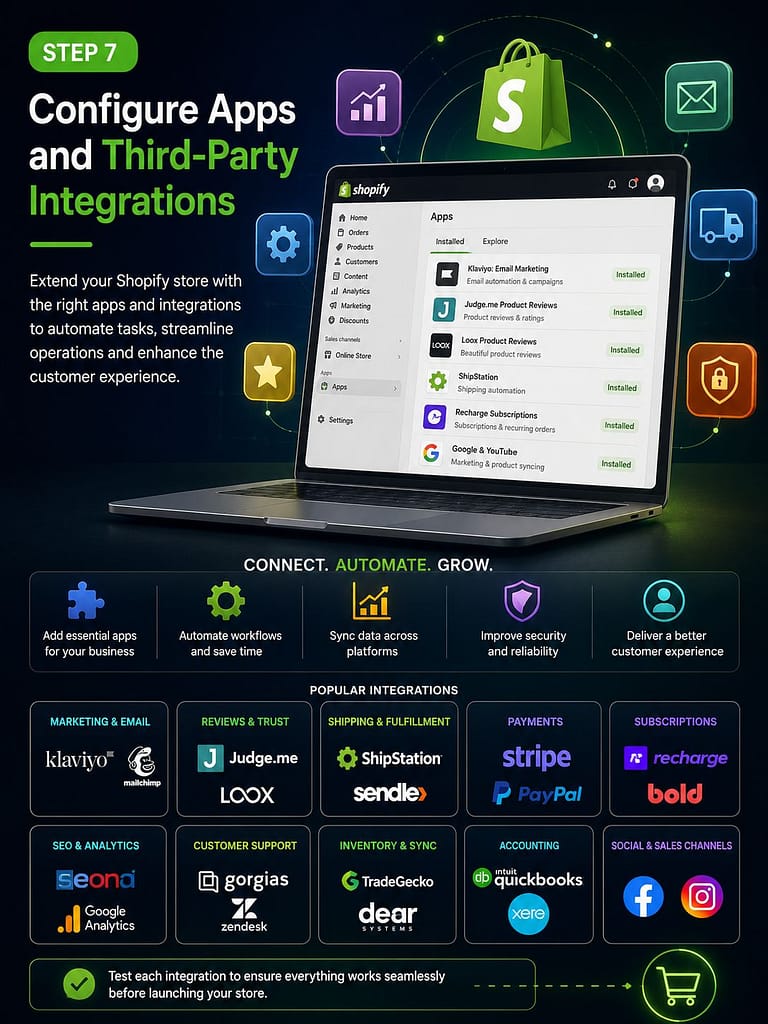
Some integrations may have Shopify apps available. Others may require a custom API integration.
Do not assume that installing an app will automatically reproduce the functionality of your old WooCommerce plugin. Test each integration carefully.
Before changing your domain, perform a complete quality assurance check.
Test:
Test the store on multiple screen sizes and devices.
Check:
Test:
The goal is to find problems before real customers and search engines encounter them.
Migrating from WooCommerce to Shopify can involve complex data, SEO, integrations and custom functionality. Our Shopify experts can help you plan and manage the migration while reducing the risk of lost data, traffic or sales.Need help with your WooCommerce to Shopify migration? Talk to our team about your store, migration requirements and the best approach for a smooth transition.
Once testing is complete, connect your existing domain to Shopify and make the new store live.
After launch:
Avoid making unnecessary large changes immediately after launch. First, confirm that the migration is stable.

The migration process does not end when the Shopify store goes live.
Monitor your website during the following weeks for:
Submit your new sitemap to Google Search Console and monitor the Pages, Performance and Core Web Vitals reports.
A properly planned migration should allow you to transition platforms while minimising disruption to your organic traffic and customers.